Showing posts with label Laptop. Show all posts
Lenovo Yoga 900 Hands-On Performance Preview

Lenovo Yoga 900 Hands-On Performance Preview

Lenovo pioneered the 360-degree hinge design with the company’s first Yoga laptop. Since then the company has been refining its design, and its newest premier laptop — the Lenovo Yoga 900 – may just be their best yet. With a clean and sleek design, a powerful 6th Generation Intel Core processor and a revamped hinge design, Lenovo takes the best aspects of the Yoga line and improves upon them.
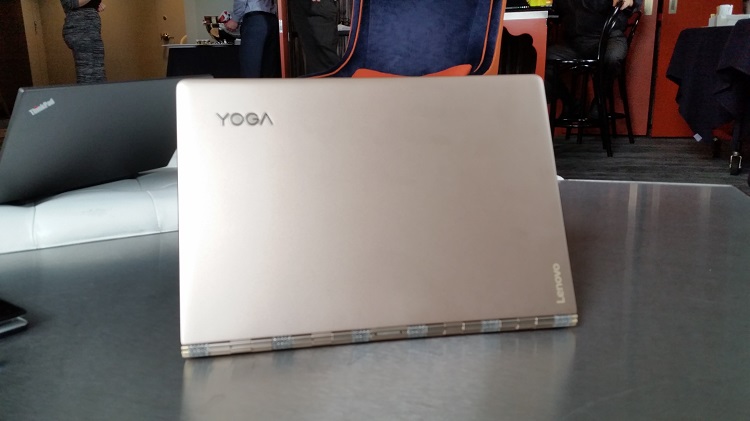
Lenovo Yoga 900 back
The premium 13.3-inch convertible certainly looks the part with smooth rounded edges and a premium metallic finish that’s available in Platinum Silver, Champagne Gold and Clementine Orange. The protective display lid showcases “Lenovo” lettering along the bottom right-hand corner and silver “Yoga” lettering along the top left-hand corner. The Yoga’s deck is comprised of a soft textured material that provides a comfortable wrist rest when typing. The bottom of the chassis is made of the same protective metal alloy casing as the screen lid.
The Lenovo Yoga 900 is incredibly thin; measuring 0.58-inches thick and weighing 2.8 pounds, making it the lightest convertible with Intel Core i Processors on the market. While the lightweight design certainly adds to the laptop’s appeal, the real crown jewel of the 900’s design is it’s revamped 360 degree watchband hinge design. The hinge is tinted to match each color option and is made up of more than 800 individual pieces. The noticeable change, is that the 900 offers a smoother rotation, making it even easier to switch between tablet, and clamshell mode and everything in between. The best part is while it offers a smoother transition, the hinge still provides enough restraint to ensure that the display doesn’t move, when using the screen’s touch controls.
Lenovo Yoga 900 tent
Speaking of the screen, the Yoga 900 houses a 13.3-inch QHD+ (3200 x 1800).The glossy panel offers excellent readability and vibrant color contrast. Unfortunately NBR didn’t get a chance to look at any media on the device, but the blues and reds looked particularly crisp on the panel. The only downside with the display was that there was a noticeable glare when the sunlight directly hit the display, causing noticeable color loss and background reflections to appear on the screen.
The Yoga 900 features an Island style keyboard. The black rounded keys are smooth to the touch and slightly are slightly curved inward, making it easy to grip with your fingertips. The keys offer excellent travel given the laptops incredibly thin profile and consistent reliable feedback. Perhaps the best feature of the 900’s keyboard is the added sixth row. The Previous iteration of Yoga’s did away with the function keys, but the 900 brings them back and still manages to offer solid spacing between keys. Located below the keyboard is a modest sized touchpad. The pad is devoid of mouse buttons and is outlined by a thin metallic strip. The soft rubber pad provides excellent travel and consistent readability.
Lenovo Yoga 900 side
The Yoga 900 not only looks the part, but has the performance to back it up. The laptop features Intel’s 6th Generation Skylake processors (with Intel Core i5 and i7 options), with up to 16GB of LPDDR3 memory and up to 512GB SSD storage. The 900 runs on Windows 10 operating system, and overs two times the battery density of previous models for upwards of 9 hours of battery life according to Lenovo.
The Lenovo Yoga 900 seems like a solid package offering a thinner form factor, with a clean aesthetic, improved design elements and stronger performance. The Yoga 900 is currently available from Best Buy retailers and online at Lenovo’s website starting for $1,200

"Performance Conclution" Huawei Watch


QUICK TAKE

The Huawei Watch looks great and has a superb display. It's missing some features, though, and Android Wear is still too limited.

Smartwatches basically suffer the same fundamental limitations across the board, especially Android Wear devices. There is not much more the most expensive Android Wear watch can do that the cheapest cannot thanks to Google’s wearable OS. This leaves smartwatch makers with only hardware options for differentiation, which Huawei took to the heart with its latest, the Huawei Watch.

“Inspired by the classic design of luxury watches,” the Huawei Watch is built for “smart, stylish people,” according to the company. Its price tag, ranging from $350 to $800, matches this pitch, as the Huawei Watch is one of the more expensive Android Wear watches available.
Huawei hopes this focus on quality watch hardware will be enough to pull potential buyers away from competing devices, including the LG Watch Urbane, which is going after the same upscale demographic.
Is it enough? Read on to find out.

Build & Design

The Huawei Watch has a quality build.
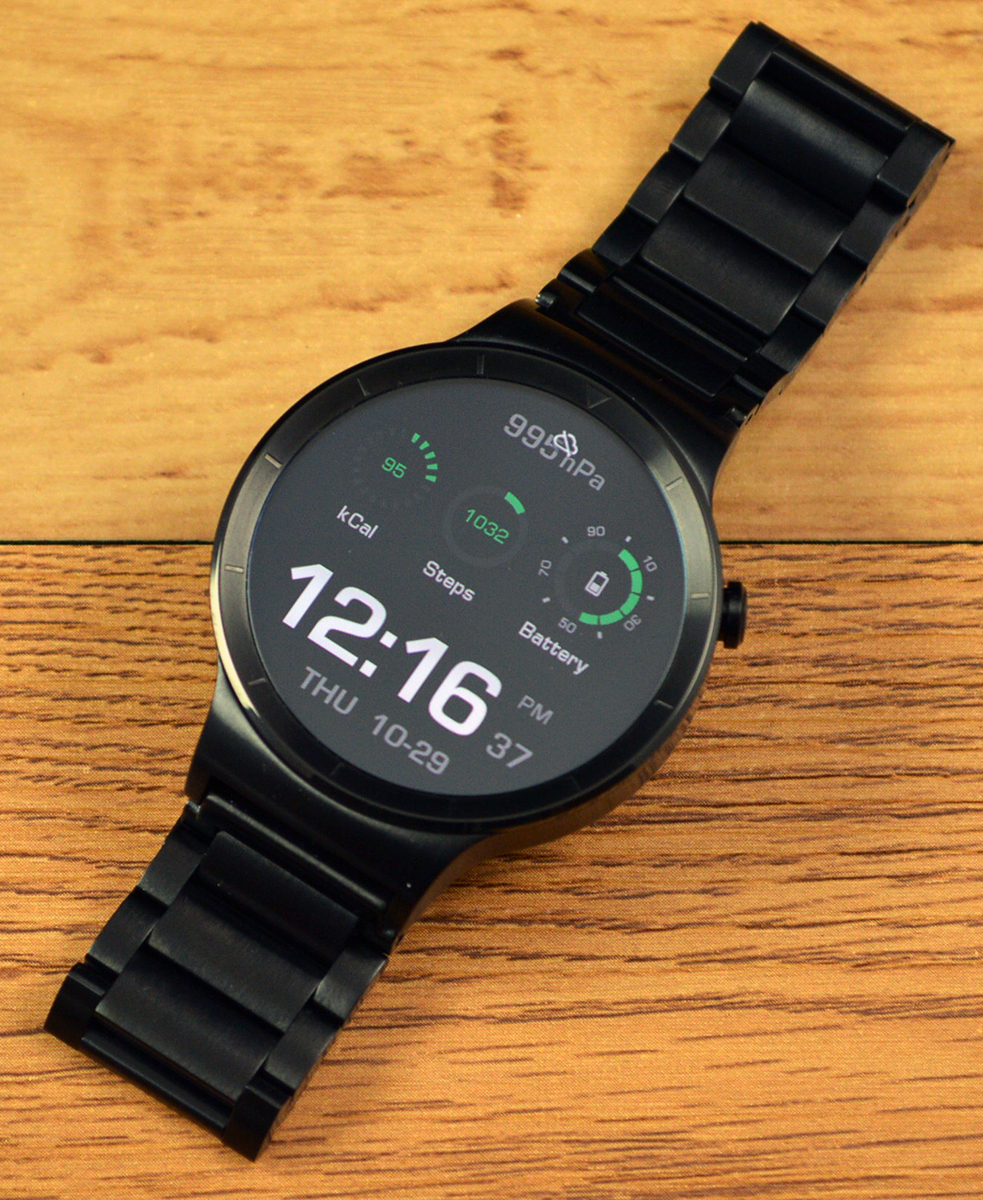
This is a well-built watch. We’ve dinged Huawei in the past for its wearable design choices, but there is nothing to complain about here. The 42mm watch face consists of cold-forged 316L stainless steel, and juts out about 11.3mm from the wrist. It feels solid, and a bit heavier than expected, which suggests a quality build.
Our review unit felt great when worn, both well balanced and snug. To be fair, we tested the black stainless steel link band, and can’t speak to the comfort of the steel mesh or leather bands. Given those are typically the more comfortable than metal links with traditional watches, we’re confident that all Huawei Watch options wear well.
While it’s obvious Huawei is marketing the Huawei Watch to men, it’s still too bad it’s only available in this size. It’s large enough that we suggest anyone looking to buy try it on first.
The Huawei Watch sports a crown on the upper-left side of its round display, which only functions as a button, toggling the display and apps/settings access. It presses well and serves its purpose.
It’s IP67 rated, meaning it can deal with dust and water splashes, and even an accidental submersion. Just to be safe, don’t take it in the shower or pool, but if you wear it while washing your hands or get caught in the rain, it will be fine.
The Huawei Watch charges via a magnetic sphere that attaches to the bottom. But unlike the Apple Watch charger, this one has four pins that align to receptacles on the back. Overall, it’s not a bad charger design, but it’s not as good as the Apple Watch or Moto 360, given the pins require specific placement.

Display

The Huawei Watch AMOLED display is excellent.
The Huawei Watch display is fully round, unlike theMoto 360 smartwatches that have the “flat tire” look owing to a small section on the display bottom. It’s a 1.4-inch full-circle AMOLED display with a 400 x 400 resolution, resulting in 286 pixels per inch.
It looks great and further proves AMOLED is the only smartwatch display tech worth conisdering. Colors pop, contrast is deep, and it’s sufficiently bright at the highest setting.
The display glass is sapphire crystal, making it extremely tough. That, coupled with a display bezel that slight extends above the watch, add a sense of security in knowing this watch face won’t nick or scratch easily.
Unfortunately, it’s also a reflective display, and here’s where the display praise ends. The Huawei Watch can be really hard to see outdoors in bright light. Max brightness offers a passable experience, but the Android smartwatch does not have an ambient light sensor to automatically adjust. Users have to manually boost the brightness in order to cut through any glare. Android Wear offers shortcuts to the setting, but it’s extremely difficult to access when you can’t see anything. There should be a voice command for this, but we couldn’t find one.
To be fair, this has been a constant problem with many smartwatches we’ve tested, and it’s illustrative of the limits. In fact, only high-end tablets and smartphones have been able to reasonably address glare.

Performance

The Huawei Watch has a 1.2GHz Qualcomm Snapdragon 400 processor, along with 512MB of RAM and 4GB of storage for apps and content. These do a fine job running Android Wear and keeps things swift and relatively responsive (we have yet to test a smartwatch that didn’t have some lag).
Sensors include a gyroscope, accelerometer, hear rate, and barometer. Barometer is an odd choice, and there is not much use for it. Some watch faces include the atmospheric pressure information, but what are you supposed to do with that?
The Huawei Watch supports Wi-Fi, with limitations.
Voice dictation works great and is accurate, which is key for any wearable. The heart rate monitor and steps counter measurements are consistent with other activity trackers, though the Huawei Watch is not a good fitness device. It’s too big, and the bands don’t lend themselves to exercise.
There is no GPS, which is a curious omission for an expensive smartwatch. It’s not a deal breaker as the Android Wear smartwatches that have it don’t do much with it independent of an Android phone (which will have GPS), but if we are buying one of the more expensive Android smartwatches, we want it to have everything.
The Huawei smartwatch supports Bluetooth 4.1 and Wi-Fi, though not in the way you might think. The Watch, like other Android Wear wearables, can connect to 2.4GHz networks, but only through a smartphone and the Android Wear app, and only on networks that don’t require a separate login, like hotel or secure corporate Wi-Fi. The Huawei Watch cannot connect independently. Once connected, the Huawei Watch loses its Bluetooth tether. So long as the smartwatch and Android smartphone are connected to a network (the 2.4GHz network for the Huawei Watch, and any network — Wi-Fi or otherwise — for the smartphone), the Huawei Watch will retain all its functionality. This works great when you’re wearing it at home, but it’s far from the killer feature “Wi-Fi support” suggests.
Like other Android Wear smartwatches, the Huawei Watch can store downloaded Google Music tracks for offline playing. This requires Bluetooth headphones, and the process of loading songs onto the watch is slow and cumbersome. But it works, and it’s a genuinely useful feature.

Android Wear

In the year and a half since Google launched it, Android Wear has gone from limited but promising to, well, limited but promising.
Do we really need random stock updates?
At its core is Google’s desire to proactively deliver necessary and contextual information to the Android smartwatch wearer, be it an email, message, traffic info, weather alert, or whatever, ultimately saving the wearer the “hassle” of whipping out a phone and staring the display.
We can buy into that, but the problem is that the alerts are delivered through Google Now, which hasn’t proven reliable enough in delivering the information users need.
In regards to Android Wear, yes, it pushes out the occasional traffic delay and calendar alerts, but it also randomly delivers all kinds of things it thinks we like, like sports scores and stock prices. Sure, we like to know how our parent company is doing on the NASDAQ, but we don’t need TechTarget’s stock price delivered throughout the day.
This can all be managed easily enough through a Google account, but it requires upkeep, and Google is quick to think users are interested in something because they Google it a few times or visit a website periodically.
To top it all off, Google Now is just not reliable. We hit traffic many times during testing, but rarely did Android Wear warn us in advance. We experienced the first morning frost of the season without any kind of alert. Shouldn’t Google push that information out knowing we live in the northeast, where many AC units still rest in windows and plants sit on porches outdoors?
Android Wear is great for basic info, like math problems.
It’s also still buggy. We couldn’t turn off wrist gestures (display powers on when watch is rotated, under the assumption the user is looking at it), which are annoying at best. This could be a hardware issue, but given our experience with other Android Wear devices, we blame the software.
Google Maps navigation, an Android Wear strength, also doesn’t fare so well on the Huawei Watch. Other Android wearables will vibrate to alert upcoming turns (great for motorcyclists and bicyclists), but this watch did not. The Huawei Watch vibrates for other alerts, so we suspect a future software fix should/will address this.
Many have also complained about the lack of Android Wear apps. Last May, just short of a year on the market, Google claimed there were 4,000 Android Wear apps. Three months after launch, the Apple Watch had 8,500.
We’d complain as well, if we knew of any must-have smartwatch apps. It would be befuddling that no third-party apps have shown the potential of smartwatches as mass-market devices, but we think that’s overstated. Smartwatches will ultimately succeed not as scaled back smartphones worn on the wrist enabled by apps, but rather central to the Internet of Things. Smartwatches should serve to open smartlocks, start smart cars, check in at smart restaurants and hotels, make mobile payments, and generally facilitate everyday task automation. 
But that’s looking forward and we digress. There are still some things that Android Wear does very well, like Google’s own apps. As we mentioned, messaging is great, Sending emojis is particularly fun as Android Wear lets users scribble a drawing, which Android Wear then matches to available icons. Setting reminders and appointments is a breeze, and travelers will get plenty of use out of Google Translate. We also like having access to info on our wrists, like “when is daylight saving’s time,” and answers to basic math problems.

iOS Compatibility

The Huawei Watch is one of the few Android Wear watches (as of this writing) that work with the iPhone 5 or newer running at least iOS 8.2. Given iOS is a generally closed system, this seems like a major coup, but the experience is so limited it serves more as a curiosity than anything else. Some Google apps, like Google Now and Gmail, work exactly as they would when paired with an Android smartphone, but just everything else is stuck sending notifications with little to no interaction.
As long as Apple is selling the Apple Watch, this won’t change. There is no reason for iPhone owners to buy any Android Wear smartwatch over Apple’s own.

Battery

The Huawei Watch has a 300 mAh battery, which Huawei claims is good for up to two days of power. We found that to be accurate in testing, provided the display is kept at medium brightness. Of course, smartwatch battery life can vary greater than just about any product depending on usage.
It also charges fast, going from near dead to full in little more than an hour.

Do you want some elegant? use Google Chromebook Pixel


Google’s Chromebook Pixel is an idea. It describes Google’s vision of a high-end laptop for citizens of a future world, freed from the encumbrances of old-style computer operating systems, existing entirely on the Web.
The Chromebook Pixel is also a product, starting at $1299 (I reviewed the $1449 version, with 4G networking). It’s as solidly built and generously appointed as any laptop you’ll find, but it runs only the Chrome web browser, not Apple's Mac OS X or Microsoft's Windows.

Reigniting the Chromebook debate

As an idea sprung from Google’s view of the future of technology, the Chromebook Pixel is intriguing, even intoxicating. But it’s hard to fathom how it works as a real-world product.
If nothing else, it's reignited the Chromebook debate. Within the editorial team here, some editors wonder what the Chromebook’s point is, while others say that Chromebook’s critics are missing the point. Meanwhile, tech legend Linus Torvalds came out in favor of the Chromebook Pixel. Reasonable people are disagreeing, and thanks to the Pixel, Chromebooks are suddenly getting a lot of attention again.

Google's vision: gorgeous

If the Chromebook Pixel is Google’s vision of what a laptop should be, the company has, if nothing else, proven it has good taste in hardware design. If there were an Apple logo on the top, nobody would be surprised. As a longtime user of Apple laptops, I felt right at home when I opened up the Chromebook Pixel for the first time.


GOOGLE
The Chromebook Pixel's brushed-aluminum design would fit right in at an Apple store.

This is a solid, aluminum-bodied laptop. At 3.35 pounds, it sits between the 2.96-pound 13-inch MacBook Air and the 3.57-pound 13-inch Retina MacBook Pro.
The Chromebook Pixel is dominated by its large, high-resolution display. It’s a bright, glass-covered panel, with a resolution of 2560 by 1700 pixels and a density of 239 pixels per inch (ppi). Like the Retina MacBook Pro (whose density of 227 ppi is imperceptibly lower), this is a screen so good that you simply can’t see the pixels. Photos are fantastically detailed, and text is crisp. The screen has an aspect ratio of 3:2, which makes it taller than most recent laptops. Given that extra height is more valuable than extra width on most web pages, it’s a good decision.


GOOGLE
The Chromebook Pixel's high-resolution display is so good you simply can't see the pixels.

The display is also a touchscreen—a curious design decision given Chrome OS is still largely a mouse-driven interface. We’ve all become so trained in the gestures of touchscreen interfaces, however, that it’s become almost second nature to reach out and tap on a screen from time to time. As long as you’re reaching over a keyboard, a touchscreen is never going to be a primary input method on a laptop. But it’s a nice addition to the trackpad.


When using the Pixel's touchscreen to swipe between images on the 500px Chrome app, I noticed that scrolling seemed laggy when I used my finger, but crisp when I used the keyboard. Part of this is, I think, psychological: When you move your finger, you expect the content underneath your finger to move along with it. But that's not all of it: When I touched an arrow key, the app scrolled to the next picture much more smoothly than it did when I swiped. The UI just wasn't measuring up. The overall experience left the touchscreen seeming at times surprisingly inferior to the keyboard.


MELISSA RIOFRIO
In the 500px app, moving through photos seemed faster using the keyboard than the touchscreen.

The Pixel’s trackpad is a large black, glass multitouch model comparable to those found on Apple’s laptops, and its backlit keyboard is similarly Apple-like. There’s no standard set of function keys at the top, though--instead, there’s a bar of buttons used to control brightness, volume, and similar features.
Ports are minimal. The Pixel has two USB 2.0 ports (not 3.0, sadly), a Mini DisplayPort for video out, a standard headphone jack, and an SD card slot.

Higher-end Pixel includes Verizon LTE

The higher-end Pixel is made for cloud-based computing. Consider the 64GB of solid-state storage to be just in case. Onboard storage is really not the point of this device, but it's actually hard even to find it in Chrome OS: Files is just another icon in the app dock. More important is the integrated 4G networking, which comes with two years of Verizon LTE service and 100MB per month of data. My Pixel connected to Verizon’s LTE network automatically whenever it couldn’t find a local Wi-Fi hotspot. With the exception of a couple of airplane flights I was able to use the Web anytime, anywhere. The $1299 version of the Pixel has just 32GB of storage and no 4G.
Driving the entire experience is a dual-core Intel Core i5 processor running at 1.8 GHz. That's far more power than any other Chromebook can boast. The Pixel posted competitive times in HTML5 gaming, Javascript processing, and other tests--even compared to some full-fledged laptops. But this power (and the display) taxed the battery, which lasted just over 3 hours in our tests.

Chrome OS is the brains behind the beauty

As accomplished as the Chromebook Pixel’s hardware is, it can’t be judged on its own. The hardware works in concert with its software--in this case, Google’s Chrome OS.


GOOGLE
Everything in Chrome happens in a browser tab.

Chrome OS is a bold move by Google to move beyond traditional operating systems. Everything--and I meaneverything--in Chrome OS happens in a browser tab. Even hardware settings (such as shutting down wireless networking before boarding a plane) are controlled via a panel inside a browser tab.
The idea here is that, for a lot of people, the Web is all that’s really necessary. If you’ve traded Word for Google Docs and Outlook for Gmail, you may find that the experience of using your computer has narrowed into one that’s almost entirely in a browser. Why not dump the rest of that junk and just embrace the browser?
I love the sentiment, but I don’t think most prospective laptop buyers--especially prospective purchasers of a laptop as pricey as the Chromebook Pixel--will find that their lives are Web-centric enough to make the shift. If all Web apps were as good as Google’s, there would be a stronger case. Spending a couple of days using Twitter’s website rather than a native Twitter client made me want to pull my hair out.


MELISSA RIOFRIO
The Chrome Web Store is a melange of truly impressive native Web apps and glorified bookmarks.

Google’s Chrome Web Store doesn’t help matters any. It’s a melange of truly impressive native Web apps and glorified bookmarks, and it’s often hard to tell which is which. I installed the Kingdom Rush “app” only to discover that it was just a shortcut to the Flash version of the Kingdom Rush game on the Kingdom Rush website. (My son sometimes commandeers my MacBook Air to play Minecraft, but since that game requires Java and doesn't run in a browser, he'd be out of luck on the Chromebook Pixel.)
This is not to say that Chrome OS can’t run truly offline apps. Though the Web was originally intended for online work, Google has done a great job of making its apps work offline. I’m writing this paragraph offline, in Google Docs, at 40,000 feet. (Granted, it took me quite a while to figure out how to enable offline access for Google Docs, since it’s turned on for all Google Apps for Domains users by default.)


The problem is that some stuff just doesn’t work offline. If you’re never offline--never in a wireless dead spot or on an airplane or in a foreign country with incompatible wireless service--that won’t matter. Again, I’d wager that for most people this will be an issue, at least for a while.
Chrome is a great browser, but Chrome OS shows a lot of gaps when it leaves its comfort zone. Usability would be improved by better window management. Chrome OS has a nice dock where you can pin frequently used apps, but it doesn’t really work right. If I’ve got a Gmail tab open and I click the Gmail button on the dock, it opens a duplicate tab. Chrome OS supports separate full-screen workspaces for different apps, but it’s got to be managed manually. I felt like I was doing a lot of unnecessary work moving tabs around to where I wanted them to go.


MELISSA RIOFRIO
Chrome OS has a nice dock where you can pin frequently used apps, but it doesn’t really work right.

Tabs, tabs everywhere

There are also places where the browser heritage shows through a bit too much. There’s a little Scratchpad app that’s built so you can quickly type in a few notes. It looks like its counterparts on Mac and Windows, but my right-click brought up a “Back” contextual menu that didn’t make any sense, and when I closed the Notes window, I repeatedly received a warning that “closing this tab” might make me lose data. It wasn’t a tab, and I didn’t lose any data. Pay no attention to the browser behind the curtain!
The Chromebook Pixel is as well-built a laptop as you'll see. The body is solid, and the screen is something to behold.


GOOGLE
The Chromebook Pixel is a sleek, exciting iteration of Google's vision of the future of computing. And it's incredibly expensive.

The problem is in the price and the operating system. At roughly the same price, you can buy an Apple laptop or an Ultrabook PC that provides roughly the same specs, runs Chrome, and also runs your favorite computer operating system with apps and games and Dropbox syncing and everything else you've come to expect from a laptop.

The Chromebook ideal isn't real--yet

As the resident of a stripped-down laptop offered for a stripped-down price, Chrome OS makes some sort of sense, but on a high-end laptop such as this, I have a hard time seeing who would want one. Sure, there are users who have completely embraced the Web and simply don't need the hassle of OS chrome and security updates and the like, but how many of those people are in the market for a laptop whose cheapest version is $1299?
As an idea, Chromebook Pixel has a lot going for it. It's an iteration of Google's vision of the future of computing, and it's sleek and exciting. But as a product, it's just not practical. There are better laptops and cheaper laptops and better, cheaper laptops. The Chromebook Pixel augurs days to come, but in the present it's just an expensive curiosity.

HP Pavilion dv6 Review is A Modestly Priced Laptop without Disappoint

HP’s Pavilion laptops are some of the best looking machines around if you’re on a budget, and the DV6 is no exception. Its textured lid, silver-effect trim and glowing touchpad bezel make it look like a much more expensive laptop, even though it only costs £450.
The HP Pavilion dv6 is the company's workhorse consumer laptop, with a 15.6-inch LCD panel and a nearly full-size keyboard. When you first see the dv6, it seems thinner than it really is. The gently curved back surface of the LCD housing hides some of the bulk in the rear, which is thicker than the front of the laptop. In fact, the curves of the entire shell disguise the fact that this notebook is nearly 1.25 inches thick in places.
Even so, at 5 pounds, 12 ounces without the power brick (and a pound heavier with it), the dv6's weight is quite reasonable. At just under $800 as tested (as of July 18, 2011), the dv6 offers an Intel Core i5-2410M Sandy Bridge dual-core CPU, 6GB of DDR3 memory, and a discrete Radeon HD 6490M graphics chip. Overall performance seems quite good for a sub-$800 system, as the dv6 earned a solid score of 117 on WorldBench 6 and lasted nearly 5 hours on our battery-life test with the six-cell battery.
You do give up some amenities to hit that $800 price, however. The LCD panel is 1366 by 768 pixels, a native resolution that's pretty common for the all-purpose laptop class. The hard drive is a 640GB Seagate model that spins at 5400 rpm; it won't win performance awards, but it offers pretty hefty capacity. The recordable-DVD drive is relatively quiet, but its extremely tiny manual eject button makes retrieving discs something of a minor chore.

The keyboard is quite good, offering excellent tactile feedback, sufficient spacing between the Chiclet-style keys, and a discrete numeric keypad. The touchpad works well, and won't pick up floating palms (a good thing). It also supports multitouch gestures, but I found that it can get confused between the scrolling gesture and the magnification gesture while in a Web browser.
Although the dv6 includes a discrete graphics card, it's no gaming powerhouse. In Far Cry 2 in DX10 optimal mode, it managed a scant 28 frames per second, while in 3DMark 2011 it achieved a low score of just 678 on the performance test. If you plan to run current-generation games on the dv6, you'll need to make sacrifices in the detail levels and possibly the resolution to get playable frame rates.
HP didn't skimp on ports with the dv6. For starters, it built in four USB ports, including twoUSB 3.0-capable ports on the left side; the pair of USB 2.0 connectors are on the right, next to the optical drive. Two audio outputs and one input connector, plus VGA, HDMI, and ethernet, are all installed in the left side of the shell. If you attach a lot of cables, the left side could become a little cluttered. A front slot for SD Cards is also available. Networking is limited to gigabit ethernet and 802.11n Wi-Fi, as the dv6 lacks Bluetooth or 3G/4G support.
Video playback quality is quite strong. WMV high-def clips looked sharp, with nicely saturated colors. DVD upscaling to the native 1366 by 768 resolution was clean, with little visible edge enhancement or noise. The laptop ships with Intel WiDi (wireless display) client software, but you'll need to buy the box that attaches to your HDTV separately.
HP Pavilion g6: Specs
  • Intel Core i3 (380M) 2.53GHz 3MB (L3 Cache)
  • 4096MB (4096MB) DDR3 RAM
  • 500GB (1x 500GB) 5400RPM SATA Hard Drive
  • 15.6in HD LED BrightView Display
  • DVD±RW SuperMulti
  • Microsoft Windows 7 Home Premium (64-bit)
  • 37.40cm (W) x 24.50cm (D) x 3.05cm (H)
  • Weight 2.55kg

The HP Pavilion g6 is, above all things, totally average. It's definitely not a performance machine, or a sexy piece of art, but if you're just looking for a decent laptop for Web surfing, word processing, and lightweight photo editing, it's a pretty good deal. The only real drawback I see is battery life--HP says you'll get 5.5 hours, but we managed to get only 4 usable hours out of the g6's battery in our testing.

Audio quality is a bit of a mixed bag, though. Enabling the included Beats Audio processing software definitely improves the sound for DVD movies, but music playback isn't particularly accurate, with too much mid-bass present. (However, you can adjust equalization in the Beats control panel manually, to suit your taste.) I also heard fairly severe distortion coming from the speakers with the volume pumped up during music playback. Even though the audio quality seems a little above average in general, you'll want to use headphones for the best playback.


The software and documentation included are both pretty standard, with HP edging into the online-storage market with HP CloudDrive, an OEM implementation of ZumoDrive. As is typical, you get 2GB free, with tiered pricing for additional storage. Also included is Norton Internet Security trialware, along with other HP tools.
Overall
the HP Pavilion dv6 offers a pleasing package at $800, with a plethora of ports, an excellent keyboard, and a decent display. If you're willing to pay for more options, the package scales up, with features such as a full 1080p panel, Blu-ray, and a higher-end Radeon HD 6770M discrete GPU, but those add-ons will ramp up the price of the system quickly. At $800, this configuration of the dv6 seems to hit a sweet spot.

Microsoft Finally Making Products Worth Lining Up For


As I scrolled through the comments on our recent face-off between the Microsoft Surface Book and the 13-inch MacBook Pro, I noticed there were a number of readers who commented that we made Apple's machine the close winner because we were trying to force a narrative. While I appreciate a passionate fan base defending a brand, Microsoft loyalists are missing the point.
The real narrative is that Microsoft's Surface Book is generating a lot of buzz — so much buzz, in fact, that Apple should be looking over its shoulder.
pq_1_a_line_up_at_allThis morning, I had a chance to stop by Microsoft's new flagship store on New York's Fifth Avenue before it opened, and there were probably 150 to 200 people already in line, along with a couple of camera crews. No, it wasn't Apple-level fandom, but it was still 4 hours before the store opened. If Dell or HP were opening a store, I'd bet no one would line up at all.
One person I spoke with said he was there for some discounts Microsoft was promoting, and another said he was there to pick up a Surface Pro 4 for his wife. He also noted that his Surface Book was waiting to be set up back at home, with the kind of tone kids usually reserve for fresh Christmas presents.
pq_3_a_reasonThere's a reason for Microsofties to be excited. As the company's first laptop, the Surface Book is very good, offering a best-in-class display, more than 12 hours of battery life and more versatility than the MacBook Pro with its pen input and detachable screen. What prevented the system from earning a higher rating was its relatively high $1,500 starting price and a number of bugs I encountered during testing.
The good news is that Microsoft is keenly aware of these early kinks, and is promising to iron them out by early November. My hopes for the Surface Pro 4 are not as high, as its battery life is just too low relative to competing ultraportables' endurance.
pq_2_criticalNevertheless, Microsoft has a lot of positive momentum. The Microsoft Band 2 looks like a much-improved version of its capable first-generation fitness tracker, with a sleeker curved design. More important, the first reviews of Halo 5 are quite positive — so positive that I bet a lot of people on the fence between the Xbox One and the PS4 will choose the former.
Products like the Surface Book should compel plenty of shoppers to visit the new 22,270-square-foot flagship store on Fifth Avenue in New York City, as well as the 116 other stores Microsoft runs. As Apple Insider recently reported, many of these locations have looked like ghost towns compared to Apple stores, but now, Microsoft has a product people want to see and try out.
It's critical that Microsoft be able to communicate how all of these products work together, even if you don't wind up buying a Surface. The company will continue to showcase other Windows 10 PCs, including those from Dell and HP. In addition, Microsoft's flagship store features an Answers Desk similar to Apple's Genius Bar, where visitors can get tech support.
As future products roll out, having a retail presence will help Microsoft continue to build its brand by demonstrating how its products can impact your life. For instance, the new Lumia 950 XL just won't be on a shelf; it will probably be attached to a monitor, keyboard and mouse, so shoppers can see that a phone can double as a PC.
I predict that, whenever HoloLens debuts, people will line up to experience the awesome augmented-reality experience Microsoft has in store. And I'm not just talking about gaming, but also how we learn, do home improvement and experience entertainment — all in a living-room-like setting.
Microsoft still has plenty of challenges. The PC market continues to decline even as interest in 2-in-1 devices picks up. And the company hasn't even made a dent in iPhone or Android market share. Windows 10 Mobile represents a reboot for Microsoft's strategy.
But based on the reaction to the Surface Book and Microsoft's current and upcoming product pipeline, there is plenty of reason to be excited about the company's narrative.

Surface Pro 4 vs. Surface Book: Is this Right for You?

If you have more than $1,000 to spend on a 2-in-1, Microsoft has two compelling choices in the Surface Pro 4 (starting at $1,029 with keyboard) and the Surface Book (starting at $1,499). While both devices can function as either a tablet or a laptop, they have a lot of differences, ranging from their designs to their keyboards and battery lives. So which is really best? To find out, we put the Surface Book and the Surface Pro 4 head-to-head in eight categories.

Design

The Surface Pro 4, like its predecessors, is a tablet first and a laptop second. The 12.3-inch slate portion measures 11.45 x 7.8 x .33 inches and weighs a reasonable 1.73 pounds. With the Type Cover keyboard attached, the weight climbs a little, to 2.37 pounds, and the thickness increases to 0.43 inches. The Pro 4's relatively light weight is a double-edged sword, because its lack of bulk leads to a more top-heavy feeling on the lap and a less-substantial-feeling keyboard. Still, the kickstand makes it easy to position the tablet on any table or balance it on your lap.
The Surface Book weighs a lot more overall, tipping the scales at 3.34 pounds and measuring 12.3 x 9.1 x .9 inches. However, its 13.5-inch tablet portion, when detached, weighs 1.6 pounds — a little less than the Surface Pro 4. Heft aside, the Surface Book has a number of advantages, including a more lap-friendly weight distribution and an attractive fulcrum hinge. The magnetic connection between the keyboard and the slate is particularly innovative, as it holds steadily but detaches fairly easily.
However, you have to press a button first to detach the Surface Book's screen; the Surface Pro 4 separates from the Type Cover with just a tug.
surface faceoff design
Winner: Surface Pro 4. The Surface Book has a lot more innovation in its attractive body. However, if you need a lightweight device, the Surface Pro 4 is a better choice, and it's easier to switch from laptop mode to tablet mode.

Ports

Because the Surface Book has a thicker body, it has more room for a lot more ports. The Surface Pro 4 has a single USB 3.0 port, a mini DisplayPort, a microSD card reader and a 3.5mm audio jack. The Surface Book has a similar collection of ports but substitutes a full-size SD card slot for microSD and throws in an additional USB port for good measure.
surface faceoff ports
Winner: Surface Book. This laptop wins by a single USB port.

Keyboard

Both devices provide a strong typing experience, with good tactile feedback and plenty of vertical travel. The Surface Book has slightly deeper keys, offering 1.5 mm of travel compared to the Pro 4's 1.4 mm, but the Pro 4's keys offered much snappier feedback.
However, the Pro 4's wafer-thin, 0.6-pound Type Cover just doesn't provide as much support as its sibling's meaty keyboard base. When I held the Surface Pro 4 on my lap, the board felt like a trampoline under my keystrokes, whereas it held firm on the Surface Book. Even on a table, my wrists were more comfortable pressing against the larger, thick metal palm rest.
surface faceoff keyboard
Winner: Surface Book. It's more laptoplike because it is one.

Touchpad

The Surface Book has a slightly larger touchpad, measuring 4.1 x 2.8 inches, but the Surface Pro 4's 4 x 2-inch pad offers a slightly smoother and more accurate feel. Whether I was scrolling down Web pages or pinch-zooming, moving my fingers on the Pro 4's pad just felt more natural.
I also found that I could move my pointer across the desktop in one or two easy movements, rather than picking up my fingers and reswiping several times as I did on the Surface Book. When clicking down, I found that the Pro 4's touchpad provided much better tactile feedback.
surface faceoff trackpad
Winner: Surface Pro 4. Smoother performance wins.

Display

Both the Surface Pro 4 and the Surface Book have higher-than-HD screens that display bright, rich and accurate colors. The Pro 4's 12.3-inch display has a resolution of 2736 x 1824 pixels, compared to the 13.5-inch Surface Book's 3000 x 2000 pixels. The panels have an identical sharpness of 267 pixels per inch and very similar brightness, measuring 382 and 387 nits, respectively, on our scale.
Both devices can display a wide range of colors: The Pro produced 99.7 percent of the sRGB spectrum on our tests, while the Book managed a similar mark of 98.5 percent. Both panels were also extremely accurate, with Delta-E error rates of 0.35 and 0.57, respectively (0 is perfect).
However, when we put the two displays side by side and watched both a 4K trailer for Suicide Squad and a 1080p trailer for Star Wars: The Force Awakens, the Surface Book's screen emerged as the clear victor. Both devices offered sharp images, but the colors were warmer and more vibrant on the Book's 13.5-inch panel. The red in Kylo Ren's lightsaber and greens, like the laser blasts in a space dogfight, really popped on the larger display. The Surface Pro 4's images had a bit of a blue tint, making the sand in the deserts of Jakku and the red on Poe Dameron's flight suit look dull by comparison. The white of Stormtroopers' armor was also a lot whiter on the Book than on the Pro.
surface faceoff display
Winner: Surface Book. Both screens rock, but the Surface Book has the edge in real-world performance.

Performance

Both high-end Surface devices are available with a variety of Intel 6th-Generation Core Series CPUs and, if similarly configured, should offer nearly identical performance. When we tested a Surface Book and a Surface Pro 4, both of which had Intel Core i5-6300U CPUs and 8GB of RAM, the devices scored 6,811 and 6,814 respectively on Geekbench 3, a test that measures overall system speed. The two devices finished our Spreadsheet Performance test, which matches 20,000 names with their addresses in OpenOffice Calc, in 4:17 and 4:11 — an irrelevant difference of just 6 seconds. Their SSDs both recorded speeds of exactly 318 MBps on our file-transfer test.
However, if you want the highest possible level of performance, you should consider purchasing a Surface Book configuration that comes with a discrete Nvidia GPU, something you can't get on a Surface Pro 4. With discrete graphics and a Core i7 CPU on board, the Surface Book returned an impressive 82 frames per second in World of Warcraft, whereas the Surface Pro 4 managed only 47 fps at the same settings (1080p, autodetect).
Surface Pro 4 vs. Surface Book: Which Is Right for You?
Winner: Surface Book. With the same specs, you get the same performance, but if you're willing to spend more, you can get discrete graphics on the Surface Book.

Battery Life

There's a huge difference in overall battery life between the two devices. The Surface Book lasted a superb 12 hours and 29 minutes on our battery test, which involves continuous Web surfing over Wi-Fi, while the Surface Pro 4 managed just 6 hours and 5 minutes — hardly enough for a full day. However, if you want to use the Surface Book as a tablet rather than a laptop, you get just 1 hour and 53 minutes with the keyboard detached.
Surface Pro 4 vs. Surface Book: Which Is Right for You?
Winner: Surface Book. Microsoft's laptop has serious staying power.

Value

At first glance, the laptop-centric Surface Book appears to be in a different price band because it carries a starting price of $1,499, but if you want a Surface Pro with more than basic specs, you're looking at a much smaller price delta. The base-level Surface Pro costs $899 but comes with a low-end, Intel Core m3 CPU, just 4GB of RAM, a 128GB SSD and no keyboard.
If you want to upgrade to a Core i5 CPU with the same RAM and storage, it's $999 plus $130 for the keyboard ($1,129). However, if you want 8GB of RAM, you have to also get at least a 256GB SSD, so the cost jumps to $1,299 plus the keyboard, or $1,429. That's just $70 less than the entry-level Surface Book, which also has a Core i5 CPU and 8GB of RAM but comes with a 128GB SSD.
Winner: Surface Pro 4, by a hair. If you're willing to accept less RAM and/or a slower CPU, the Surface Pro 4 can be significantly cheaper than its sibling, but when you're buying a premium device in the $1,000 range, you'll probably want to spend the extra money to get proper specs.

Overall Winner: Surface Book

The Surface Book comes out comfortably ahead of the Pro 4, thanks to its superior battery life, more colorful screen and better typing experience. The Surface Book also offers discrete graphics (if you're willing to pay extra).
However, if you intend to use this device as a tablet first and foremost, the Surface Pro 4 is a better choice because of its lighter weight, longer battery life in slate mode and lower price. Otherwise, if you can afford its high starting price and want a superior productivity experience, go for the Surface Book.